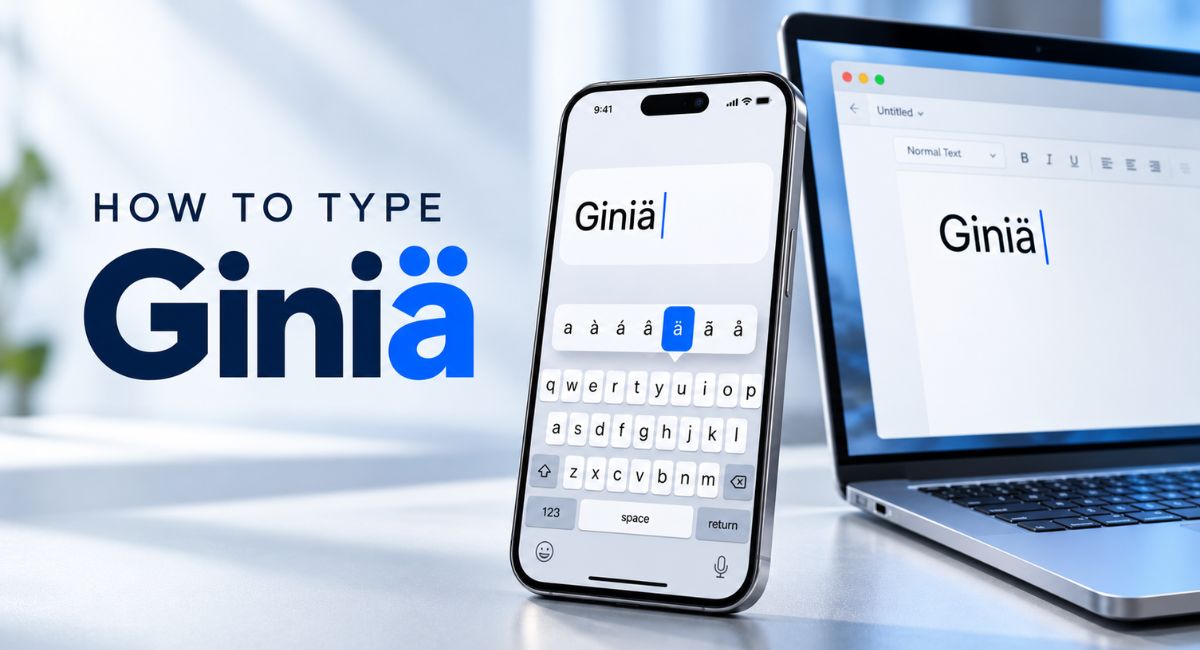
You can type most of Giniä with an English keyboard, but the final letter can make you pause. Where do you find an “a” with two dots when your keyboard only shows a plain “a”? The answer is usually a long press, a keyboard shortcut, or a quick copy and paste. You do not need special writing software. This guide explains the methods for phones, Windows computers, Macs, and other common devices, with simple ways to fix problems if the letter does not appear.
Understand the Final Letter Before You Start
The final letter in Giniä is ä. To copy this spelling correctly, keep the two dots above the last letter. Do not replace them with quotation marks or add two full stops after a plain “a”. Those marks create different text, even if you try to place them close together. You need to enter the actual character through your keyboard or copy it from existing text.
Also check the letter size. Lowercase ä and uppercase Ä are different forms. For the spelling used here, only the opening G is uppercase. The remaining letters are lowercase. If your keyboard shows an uppercase accent menu, turn off Caps Lock or Shift before choosing the final letter. Getting the case right at the start helps you avoid correcting the whole word later.
Copy and Paste for the Fastest Result
If you only need the word once, copy Giniä directly from this sentence. On a phone, touch and hold the word, adjust the selection handles if needed, and choose Copy. Open your message, document, or search box, touch the text field, and choose Paste. Check that you selected the complete word and did not include an unwanted space or nearby punctuation.
On a computer, select the word with your mouse. Press Ctrl + C on Windows or Command + C on a Mac. Click where you want the text, then press Ctrl + V or Command + V. This method is useful when you are working on an unfamiliar keyboard. You can also save a correct copy in a note so you can find it again without searching.
How to Type Giniä on an iPhone or iPad
Open Notes, Messages, or another app where you can enter text. Type the first four letters, then touch and hold the a key on the onscreen keyboard. Keep your finger down until the extra letter choices appear. Slide your finger to ä, then lift it to insert that letter. The whole action should be one continuous touch, slide, and release.
If the keyboard types a plain letter, you may have lifted your finger too early. Delete that letter and try again, holding the key a little longer. Look closely because the menu may include á, à, â, and other similar choices. Their order can vary, so select the shape you need rather than memorising its position. These instructions apply to the onscreen keyboard; an attached physical keyboard may use another method.
Enter the Word on an Android Phone
To type Giniä on Android with Gboard, open a text field and enter the first four letters. Touch and hold a until the extra choices appear. Keep your finger on the screen, move it onto ä, and release. Before continuing, check the result. It is easy to choose a nearby letter when the options are small or you move your finger too quickly.
Android phones can use different keyboard apps, so the exact menu may look different. If the letter is missing, check which keyboard is active. In Gboard, open the keyboard settings, choose Languages, and then Add keyboard if you need another language layout, such as Finnish. Changing the keyboard language does not require changing the language of the whole phone. Try the long press first, since it may already provide the character.
How to Type Giniä on Windows With an Alt Code
If your Windows keyboard has a numeric keypad, you can enter ä with Alt + 0228. Click in a text field and type the first four letters. Make sure Num Lock is on, hold Alt, and type 0228 on the numeric keypad. Release Alt after entering the last digit. In a compatible app, the accented letter should appear at the cursor.
Use the number pad, usually on the right side of a full keyboard, rather than the number row above the letters. Keep the opening zero in the code. A compact laptop may not have a suitable keypad, so this method will not work on every keyboard. If nothing happens, check Num Lock and try once more. Then use Character Map or copy and paste instead of repeating a shortcut your keyboard cannot support.
Use Character Map on Windows Without a Number Pad
Character Map gives you a way to select the letter with your mouse. Open Windows search, type Character Map, and open the app. Choose a common font such as Arial, then find ä in the character grid. Click the letter, choose Select, and then choose Copy. Return to your document and paste it after the first four letters you have already typed.
This method is useful on small laptops and keyboards without a separate number pad. Make sure you select the lowercase letter with two dots, since the grid contains many similar characters. If you cannot find it in the selected font, try another common font. Once you have entered the complete word correctly, save it in a note if you expect to use it again.
Type the Word on a Mac
On a Mac, you can often type Giniä through the accent menu. Enter the first four letters, then press and hold a. When the choices appear, click ä, or press the number shown beneath it. Choose the letter by its appearance, since the menu position can vary. If holding the key only repeats the plain letter, the current app may not support this menu.
Another method works with common Mac layouts such as ABC and US English. After the first four letters, press Option + U, release both keys, and then press a. The accent joins the final letter. Do not hold all three keys together. If your layout behaves differently, use the accent menu or copy and paste. Mac shortcuts depend on the active keyboard layout, so a shortcut from another computer may not produce the same result.
Insert the Letter in Microsoft Word
In the desktop version of Word for Windows, you can use a Unicode code. Type the first four letters, then enter 00E4. Select just those four code characters and press Alt + X. Word converts the selected code into ä. Selecting the code helps prevent nearby letters or numbers from being included in the conversion. This shortcut belongs to supported apps and is not a general shortcut for every Windows text field.
If you prefer to select the letter visually, open Insert, choose Symbol, and then More Symbols. Find the lowercase letter with two dots, select it, and choose Insert. Menu names and available options can vary between Word versions. On a Mac, the normal Mac typing methods are usually the easier place to start. In Word on the web, copy and paste is a useful alternative when a desktop shortcut does not work.
Enter the Letter on a Chromebook
A Chromebook may offer an accent menu when you hold a letter key. Type the first four letters, then hold a and look for the extra choices. Select ä with the mouse, or use the arrow keys to highlight it and press Enter. If the menu is available, this is a convenient option because you do not have to remember a character code.
Another option is the English (US) with International keyboard layout. Open Settings, find Keyboard, and choose Change input settings. Add and select the international layout under the input methods. With that layout active, AltGr + Q enters ä. AltGr means the Alt key on the right side of the keyboard. This combination depends on the layout, so it may produce a different result if your regular keyboard layout is still active.
Use Unicode Entry on Supported Linux Apps
In many Linux apps that use the GNOME or GTK input method, you can enter the letter through its Unicode code. Type the first four letters, press Ctrl + Shift + U, and release the keys. Type 00E4, then press Enter or Space. The code should turn into ä. Unicode is a system that gives characters their own codes, allowing software to identify them.
This method is not available in every Linux app or desktop setup. If the code stays visible, or another command opens, use your system’s character picker or paste the letter from a saved note. Test the shortcut in a simple text editor before using it in an important document. You do not need to change system settings just to enter one unfamiliar character.
Save a Shortcut if You Use the Word Often
A text replacement can save time when you type Giniä regularly. On an iPhone, open Settings, then General, Keyboard, and Text Replacement. Tap the add button. Put the correctly spelled word in the Phrase field and choose a short trigger, such as gniword, for the Shortcut field. Save it, then test the trigger in Notes to see how your keyboard inserts the full spelling.
Choose a trigger that you would not normally use in a sentence. A common word could cause unwanted replacements during everyday typing. Other keyboards and writing apps may offer a personal dictionary or text replacement feature, but the settings vary. If you cannot find a suitable option, keeping a reusable copy in a note is enough. Check the saved spelling carefully before using it as your main copy.
Fix Common Typing Problems
If Giniä changes after you finish typing, watch what happens when you press Space. Your keyboard may be replacing an unfamiliar word through autocorrect. Undo the change or choose your original spelling when the keyboard offers it. If the problem happens regularly, check whether your keyboard allows you to save the word. Always test the result in a full sentence, because a correction may happen after the next word begins.
If the final letter becomes an empty square, try displaying the text in a common font. If an accent menu does not open, test it in another writing app. These checks help you work out whether the problem comes from the keyboard, the app, or the way the text appears. Copying the correct letter into a simple note is a useful comparison before changing settings.
Check the Spelling Before You Publish or Send
Before publishing Giniä in a blog post, title, or message, compare it with a correct copy. Look for the uppercase G, lowercase letters, and two dots above the final character. Also check for spaces inside the word. When copying between apps, make sure you have not brought across quotation marks or other text that was included in the original selection.
For a WordPress article, review the saved draft and open the page preview. Look at the title and any headings where the word appears. If you pasted text from a formatted document, check the font size and spacing around it as well. A quick review on both your phone and computer can reveal display problems that were easy to miss while editing.
Conclusion
Typing Giniä becomes straightforward once you know how to enter the final letter. A long press is convenient on phones, Windows users can choose an Alt code or Character Map, and Mac users have an accent menu and keyboard combinations. Copy and paste remains a quick option across devices. Use the method that fits your keyboard, save a correct copy if needed, and check the spelling before sending or publishing your text.
(FAQ’s)
1. Can I Type Giniä Without Changing My Keyboard Language?
Yes, a long press, character picker, supported shortcut, or copy and paste may work with your current layout.
2. What Is the Windows Alt Code for ä?
Hold Alt and type 0228 on the numeric keypad, then release Alt.
3. How Do I Type ä on an iPhone?
Touch and hold a, slide your finger to ä, and release.
4. Why Does the Alt Code Fail on My Laptop?
Your keyboard may lack a suitable numeric keypad, Num Lock may be off, or the app may not support it.
5. Can I Copy the Letter Into WordPress?
Yes, paste it into your text and check the saved draft and page preview.
You may also read: What Is IP2 Network and How Does Its Live Stream Directory Work
Visit for more additional information: Loom Magazine