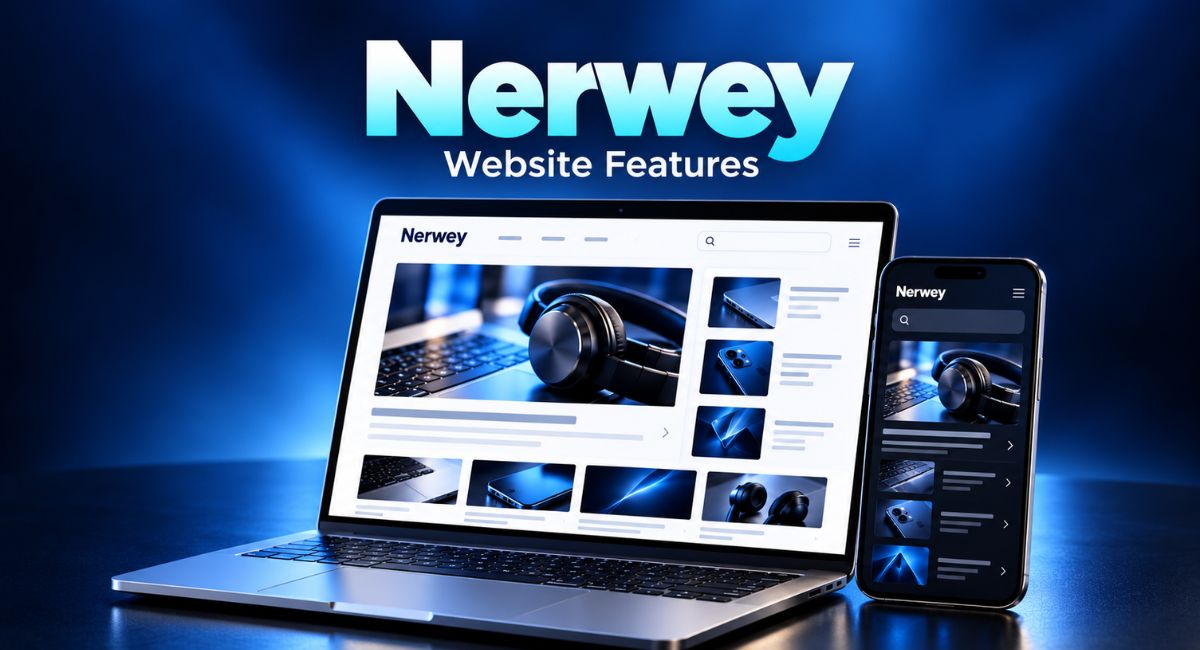
A useful article should answer your question without making you work too hard. Yet it is easy to open a website, follow several headlines and leave without finding what you need. Before spending time on Nerwey, take a moment to check how its pages work. Topic categories, search tools, dates and author details can all help you choose what to read. This guide explains which features to look at, how to use them and how to judge whether an article gives you enough detail.
What Kind of Website Is Nerwey?
The website describes itself as an information platform covering technology, business, digital marketing, health and lifestyle. Its About page says it aims to make information easy to understand. That gives you a starting point: it is a place to browse articles across several subjects. Check each article separately, since one website can publish pieces with different levels of detail.
Before choosing a page, decide what you want from it. You may need a simple meaning, a practical guide or a comparison between two options. A broad introduction can help you understand a new subject. However, a specific task, such as changing a software setting, needs clear instructions that match your device and current software version.
Check the Homepage Before Choosing an Article
The Nerwey homepage displays article titles, category labels, dates and short previews. These details let you scan several posts before opening one. Read the preview alongside the headline to see whether the article covers your question. A title may mention a broad topic, while its opening lines show that the writer focuses on one small part. Treat “Top Stories” and “Recent Posts” as browsing sections. Their labels do not tell you which post best answers your question.
For example, someone looking for help with office software may find a general business article that looks interesting. Before opening it, check whether the preview mentions the right task. This small pause can prevent a long detour. Open one promising page first, then return to the homepage if it does not provide the answer you expected.
Use Topic Categories to Narrow Your Reading
Nerwey lists categories including Technology, Business, Education, Gaming, Health and Lifestyle. Category pages bring posts from the same subject together. The Technology page, for example, includes articles about office software, animation tools and other digital topics. Browsing this page can be more useful than moving through unrelated posts on the main homepage.
Still, a category name covers a wide range of ideas. A technology article might discuss workplace tools, vehicle software or online services. Read individual titles carefully before choosing. If several posts seem useful, start with the one closest to your question. You can return to the wider subject later, once you understand the part that matters most. When a post has more than one category label, read its summary to understand which subject is the main focus.
Try the Search Box With a Clear Phrase
Nerwey has a search field that provides another way to look for content. Try a short phrase connected to your question. A word such as “software” may be too broad, while “animation maker” gives the search a clearer subject. Read the titles in the results before deciding which page deserves a closer look.
If a search gives you little help, change one part of the phrase. You could shorten a product name or use a common term for the task. There is no need to keep typing the same long question. Search tools can miss relevant pages when the wording differs, so browse the closest category if your first attempts lead nowhere. You can also use your browser’s find tool within an open article to locate a word without searching the whole site.
Look at Publication Dates and Older Archives
The homepage shows dates beside posts and includes monthly archives for older content. When reading Nerwey, check these dates before following advice about software, services or online tools. A guide may still explain the main idea well, even if a button name, price or available feature has changed since the writer published it. A visible publication date records when a post appeared. It does not show that the writer recently checked every instruction.
The importance of a date depends on your question. General advice about organising your work may remain useful for years. Instructions for an app need a closer check. If you cannot find a clear update date, compare the steps with the current product instructions. Older archives are useful for browsing past material, but they do not prove that every detail remains current.
Check the Author and About Page
Nerwey displays author labels on its article listings, and its About page explains the site’s stated purpose. These features help you understand who publishes the content and which subjects it aims to cover. Open an author’s page when more information is available, especially if you need advice that depends on experience in a particular field. Notice whether the author label identifies a person or the publication, because those give you different amounts of information.
Look for details that relate to the subject. Relevant work, a clear explanation of the writer’s role or examples of past work can provide context. A name alone tells you little about someone’s knowledge. If author information is limited, give more attention to the evidence within the article and compare important claims with sources that explain their work.
Read the Headings and Opening Paragraphs
A full article can tell you more than its preview. The site’s animation guide, for example, uses headings to divide definitions, tool types, uses and selection advice. This kind of structure helps readers find a relevant part without reading every line first. Scan the headings before deciding whether a page offers the detail you need.
Then read the opening section and one practical passage. Good instructions should explain what to do and make unfamiliar terms clear. For example, a guide that mentions exporting a file should explain the choice that matters to the reader. A screenshot can help, but compare its menu labels with what you can see on your own screen. If the writing keeps repeating the headline without answering it, another page may use your time better.
Look for Sources Behind Important Claims
An article on Nerwey may introduce a topic you have never studied before. As you read, notice which statements need evidence. A claim about a product’s limits should lead you towards current product information. A number should have enough context to explain what it measures, when it was recorded and where it came from. Check that a cited source supports the exact statement, rather than simply discussing the same broad topic in different terms.
Follow the evidence rather than relying on confident wording. If a guide says a tool saves time, look for a clear example of the task involved. If it compares two services, check whether both are judged by the same features. This habit is useful whenever an article could influence a purchase, a work decision or a change to your settings.
Check Mobile Comfort and Page Loading
If you plan to read Nerwey on your phone, open a complete article and scroll through several sections. Check whether the text is comfortable, headings are easy to follow and images fit the screen. Try opening the search field and a category page too. A homepage alone cannot show you how comfortable a long article will feel.
Watch for problems that interrupt your reading. Text may be too small, an image may take time to appear or a page may move while it loads. You can try browser zoom or a reader view if your browser offers one. If a page loads slowly, compare it with another website on the same connection before judging the cause. For longer reading sessions, increase the text size until you can read comfortably without moving the page from side to side.
Notice Ads, Offers and Outgoing Pages
While reading, pay attention to where a button or linked phrase takes you. It may open another article, a product website or a separate service. Check the destination before treating it as part of the guide. This is especially helpful when you want to read an explanation and a nearby offer invites you to download or buy something.
Also look for any labels that explain whether the writer was paid or may earn money from a purchase. Such information helps you judge a recommendation in context. Compare the features described in the article with the details provided by the product owner. Keep your original question in mind so that extra offers do not pull you away from the information you came to find.
Understand the Comment Form Before Joining In
The animation article on Nerwey includes a comment form with fields for a name, email address and website. It also offers an option to remember those details in the browser. Before posting, read the message beside the form and decide which information you are comfortable sharing. Pay attention to whether a field is required or optional.
A useful comment asks a clear question or points to a specific part of the article. For example, you could ask which software version the instructions describe. Avoid adding account details or other private information to a public message. On a shared device, consider whether you want the browser to remember your details for future comments. Before submitting, read your message once more to make sure the question includes enough context for someone else to understand it.
Build a Simple Reading Routine
Before opening more articles, write your main question in one sentence. Then use a category or a short search phrase to choose one page. Check its date, scan the headings and read the section that matches your task. This routine gives each feature a purpose and helps you avoid opening many tabs without making progress.
Imagine that you want to understand the difference between an online animation tool and desktop software. Start with a page that explains both options. Note the differences that affect your work, such as installation and internet access. If you later choose a product, check its own current details. Save the article in your browser bookmarks if you expect to need the explanation again.
Conclusion
Nerwey offers several features worth checking before you settle into an article, including categories, search, dates, author labels and archives. Use them to find a relevant page, then judge the writing itself. Clear headings make information easier to reach, while useful examples and supporting sources help you understand it. Start with one question, read with that question in mind and compare details when they could affect a decision. A focused visit can leave you with a clearer answer.
(FAQ’s)
1. What is Nerwey used for?
It publishes articles across subjects including technology, business, digital marketing, health and lifestyle.
2. How can I find a particular topic?
Try a short phrase in the search box or browse the closest category.
3. Does an older publication date make an article useless?
No, but check details that may have changed, especially software instructions and prices.
4. What should I check before following a guide?
Check its date, relevant examples, supporting sources and whether the steps match your needs.
5. How can I return to a useful article?
Save it in your browser bookmarks with a name that helps you remember its subject.
You may also read: Hormita Search Tips for Finding Clear Answers and Useful Sources
Visit for more additional information: Loom Magazine