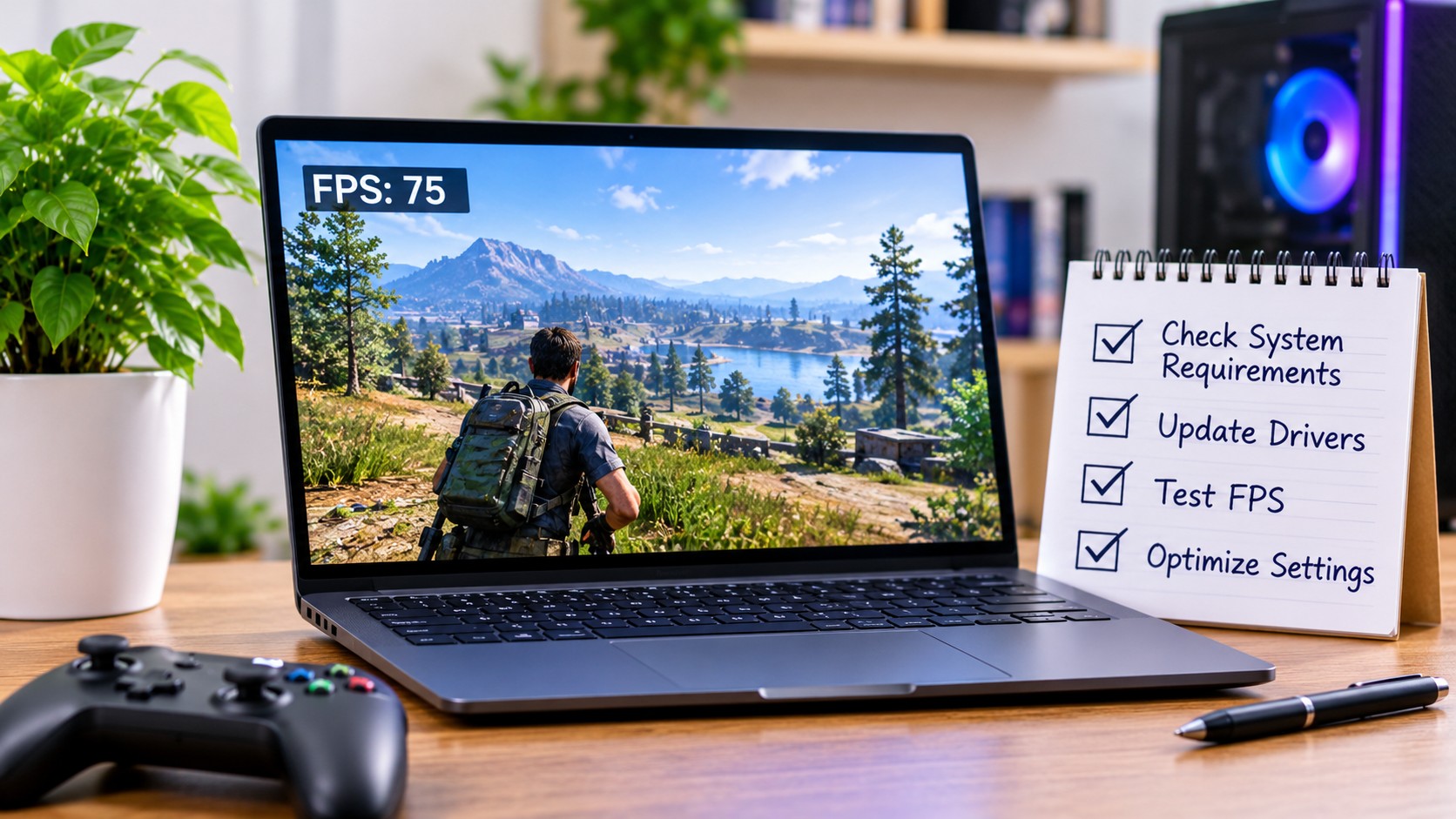
Buying a new PC game is exciting, but discovering that your computer cannot run it properly can quickly spoil the experience. A game may look impressive in its trailer and have an interesting story, yet its actual performance depends on whether your computer has the right hardware and software to support it.
Many players check only the storage space or minimum system requirements before purchasing a game. However, compatibility involves several components, including the processor, graphics card, RAM, operating system, and available storage. Even when a computer meets the basic requirements, its performance may not be as smooth as expected.
Fortunately, checking a PC before installing a demanding game does not have to be complicated. By understanding system requirements, keeping drivers maintained, and estimating frame rates, users can make more informed decisions and avoid unnecessary upgrades.
1. Understand Minimum and Recommended System Requirements
Most PC games publish minimum and recommended system requirements. These specifications help players understand the hardware needed to run a particular title.
Minimum requirements generally describe the basic configuration needed to launch and play a game. However, meeting these requirements does not necessarily mean the game will run smoothly at high graphics settings.
Recommended requirements usually describe a more capable configuration intended to provide a better overall experience. They may include a faster processor, a more powerful graphics card, additional memory, and more available storage.
Before purchasing a game, pay attention to these important specifications:
- Processor (CPU): Handles game calculations, logic, and many background tasks.
- Graphics card (GPU): Processes visual elements such as textures, lighting, shadows, and effects.
- RAM: Provides temporary memory for the operating system, game, and running applications.
- Storage: Determines whether enough space is available for installation and game files.
- Operating system: Ensures the computer supports the software environment required by the game.
Comparing these details with your computer’s specifications gives you a starting point. It is also important to check whether the game has additional requirements, such as a particular operating system version or graphics technology.
2. Use a Can I Run It Tool to Check Game Compatibility
Manually comparing every hardware specification can be confusing, especially for people who do not regularly work with computer hardware. A compatibility checker can make the process easier by comparing a PC’s configuration with a game’s published requirements.
A tool such as IObit’s Can I run it can help users check whether their computer meets the minimum and recommended requirements for supported games.
The process is designed to be straightforward. Users select a game, start the hardware detection process, and review the resulting compatibility information. The tool examines important components such as the CPU, GPU, RAM, and operating system before comparing them with the selected game’s requirements.
This can be useful in several situations.
Before purchasing a game: A compatibility check helps users understand whether their current computer is suitable for a particular title.
When considering an upgrade: If a PC does not meet the recommended requirements, the results can help identify which hardware specifications deserve closer attention.
When choosing between games: Players can compare the requirements of different titles and consider which ones are more suitable for their existing systems.
A compatibility checker should be treated as a helpful guide rather than a guarantee of perfect performance. Actual results can vary depending on game updates, graphics settings, background applications, and the condition of the computer.
3. Why You Should Keep Device Drivers Updated
Hardware compatibility is only one part of preparing a computer for gaming. The software that allows the operating system to communicate with its hardware also matters.
Device drivers are essential for components such as graphics cards, sound devices, network adapters, and other peripherals. When drivers are outdated, missing, or affected by compatibility problems, users may experience unexpected errors or hardware-related issues.
Graphics drivers deserve particular attention because they help the operating system and games communicate with the graphics card. Manufacturers sometimes release updates to improve compatibility with newer games, address bugs, or introduce optimizations for supported hardware.
A sensible driver maintenance routine includes:
- Checking graphics and other important device drivers periodically.
- Downloading updates from official manufacturers or trusted sources.
- Reviewing version details and release information.
- Avoiding drivers that are not intended for your hardware.
- Creating a restore point before significant driver changes when appropriate.
For people who want a more convenient way to manage this process, tools that update drivers can help identify outdated or missing drivers. IObit Driver Booster is designed to scan Windows computers and assist with driver updates.
Keeping drivers maintained can help support hardware compatibility and system stability. However, an update is not guaranteed to increase FPS in every game. If a computer has a hardware limitation, software maintenance alone may not solve it.
4. Understand FPS Before Changing Graphics Settings
FPS, or frames per second, describes how many individual frames a computer renders each second. It is one of the most familiar measurements used to discuss gaming performance.
A higher frame rate can make movement appear smoother, which is particularly noticeable in fast-paced games. However, a high average FPS does not always mean the experience will be consistent.
For example, a game might run at a high frame rate in an empty area but experience significant drops during busy scenes. These fluctuations can make gameplay feel less smooth.
Several factors influence FPS:
Graphics settings: Higher resolutions, detailed textures, shadows, and visual effects increase the workload on the graphics card.
CPU performance: Games involving complex calculations, large environments, or many active characters may place considerable demands on the processor.
Available RAM: Running several demanding applications at the same time can affect the resources available to a game.
Cooling: Excessive temperatures may cause hardware to reduce its operating speed to protect itself.
Background applications: Unnecessary programs can use memory and processing resources while a game is running.
Understanding these factors makes it easier to investigate performance problems instead of changing settings without knowing what is causing them.
5. Use an FPS Test to Estimate Gaming Performance
Knowing that a computer meets a game’s minimum requirements does not tell you exactly how smoothly it will run. Two computers may both satisfy the basic requirements but deliver different frame rates because their hardware configurations are not identical.
An FPS test can help users estimate how a particular CPU and GPU combination may perform in a selected game. IObit’s FPS Calculator allows users to choose hardware, a game, and relevant settings to receive an estimated performance result.
This type of estimate can be useful before buying a game or deciding whether a hardware upgrade is worthwhile.
For example, someone considering a demanding game can check how their current processor and graphics card may perform at different resolutions. A user planning to upgrade a graphics card can also explore how the expected frame rate might change with a different hardware configuration.
However, estimated FPS and measured FPS are not the same thing.
An online calculator provides a prediction based on available performance data. Actual results depend on the computer’s condition, driver versions, cooling, background processes, game updates, and graphics settings.
For a more accurate assessment of an existing PC, players can use an in-game FPS counter or a suitable performance-monitoring utility while playing.
6. What to Do If Your PC Does Not Meet a Game’s Requirements
Discovering that a computer does not meet a game’s recommended specifications does not always mean that an immediate upgrade is necessary.
The first step is to identify the difference between the current hardware and the game’s requirements. A system that falls slightly short in one area may still provide a reasonable experience with adjusted settings, depending on the game.
Consider these practical steps:
- Review the compatibility results: Identify which components do not meet the recommended specifications.
- Check the graphics settings: Lowering demanding options may reduce the workload on the graphics card.
- Maintain device drivers: Check for suitable updates from trusted sources.
- Review background applications: Close programs that are not needed during gameplay.
- Monitor temperatures: Ensure the computer has adequate airflow and functioning cooling components.
- Consider hardware upgrades carefully: If a component is consistently limiting performance, compare suitable replacement options before making a purchase.
It is also worth remembering that different games place different demands on hardware. A computer that performs well in one title may struggle with another, even if both games appear similar.
7. Build a Simple PC Gaming Preparation Routine
Preparing a computer for a new game becomes easier when users follow a consistent routine. Rather than waiting until a game crashes or performs poorly, they can check compatibility and system condition beforehand.
Start by reviewing the game’s minimum and recommended requirements. Next, compare those specifications with the computer’s actual hardware using a compatibility checker. Once compatibility has been assessed, make sure important device drivers are maintained and review the expected frame rate.
After installing the game, test it using realistic graphics settings and monitor its performance during normal gameplay. If the experience is inconsistent, investigate temperatures, background applications, and individual graphics options before assuming that new hardware is required.
This approach can save time, reduce guesswork, and help users make better decisions about their gaming setups.
Final Thoughts
A good PC gaming experience begins before a game is installed. Understanding system requirements, checking hardware compatibility, maintaining device drivers, and estimating frame rates can help users avoid unpleasant surprises.
A Can I Run It checker provides a convenient way to compare a computer with a game’s requirements, while an FPS test offers a better idea of possible performance. Driver maintenance supports communication between the operating system and hardware, helping keep the system ready for compatible games. No single tool can predict every aspect of real-world gaming performance. However, using these checks together gives players a clearer understanding of their computers and helps them make more informed choices before purchasing games or upgrading components.